
The Complete Guide to Double-Ended Recording for Remote Interviews
Scott Keck-Warren • March 9, 2026
It finally happened, you landed a dream interview! The conversation and insights were great and you've already picked out the clips you want to create.
Then you go to edit the recording. Your audio sounds great (it would after all) but your guest sounds like they're calling from the bottom of a well and there's that robotic warble when the wifi gave out. All that good content, stuck behind audio that's hard to sit through.
The actual problem
Most podcasters blame the guest's microphone or their internet. The real issue is much simpler: you're trying to transmit high-quality audio over the internet in real time, and it's just not made for that.
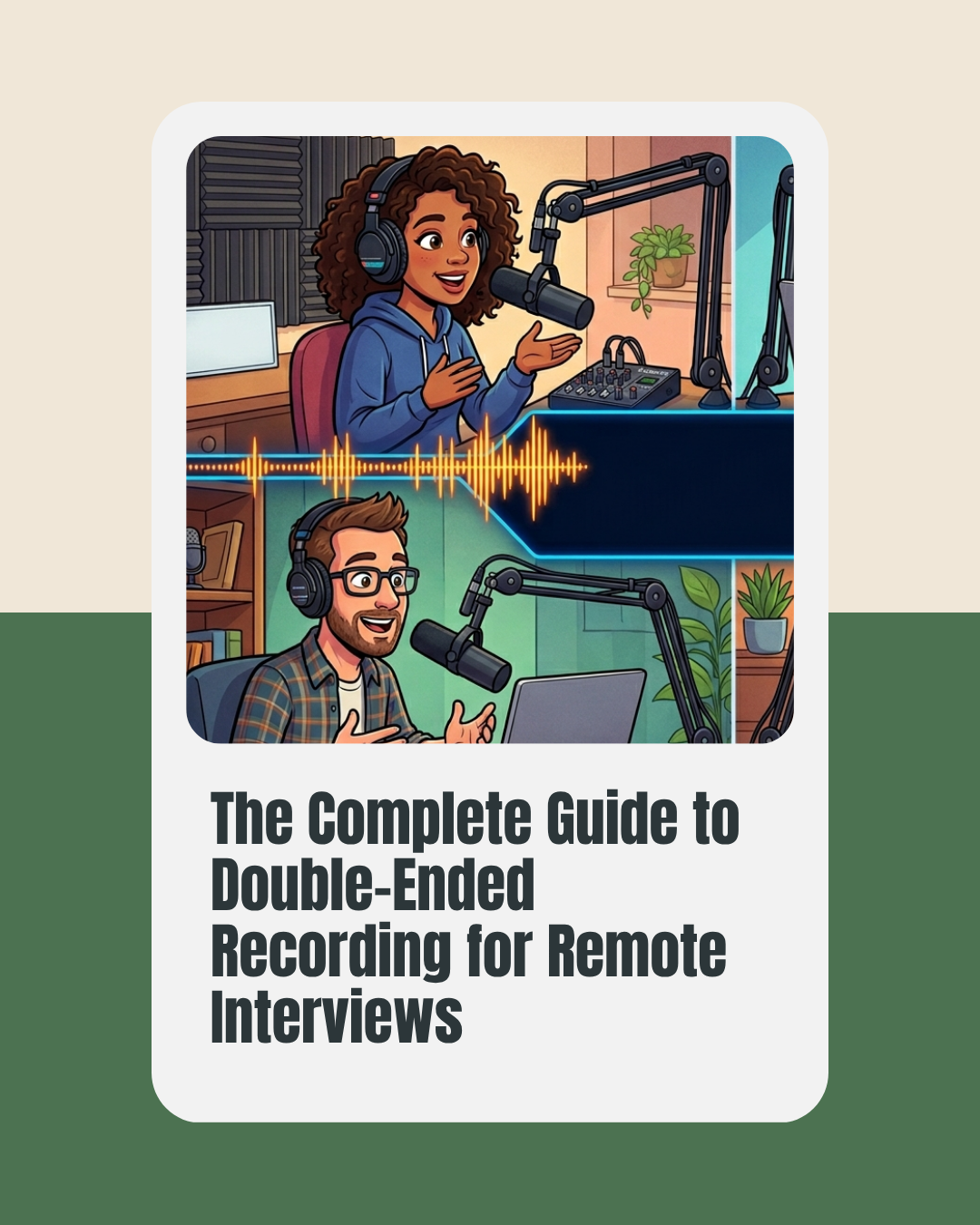
The fix is what's called a "double-ended recording" where both you and your guest record locally on your own devices and then you edit using the high quality recording instead of the low quality internet messed up version. The result is a much cleaner recording on both sides, no matter what the internet gremlins get up to.
Why it works
Recording locally means internet and local network quality has little to zero effect on your final audio (guests still freak out if you drop off). Things like lag and compression artifacts don't show up in a local recording because they're a product of the internet connection, not your microphone.
As a bonus, you also get independent audio and video tracks for each person so you can adjust your guest's volume without touching yours or silence your interruptions when you think they're done with a thought. Each voice lives on its own track which gives you total freedom in post.
The tools
The good news about this technique is that you and your guests already have most of what you need, and anything you're missing is free or close to it.
To start you're going to need recording software. There are build in options like GarageBand (Mac/iOS), Voice Memos (iPhone), Voice Recorder (Android) but you can also use free software like Audacity (Windows/Mac/Linux). This will allow you to record the audio on both sides.
There are also platforms that handle both the recording and the file transfer, and they're generally browser-based so your guest doesn't need to install anything. Some examples are Riverside.fm, SquadCast, Zencastr, and Cleanfeed. There's no clear market leader and it feels like a new option pops up every few weeks. They do charge for their services, but most offer a free trial so you can find the one that fits how you work.
If your guest isn't technical, use a platform like Riverside that handles everything, or ask them to use their phone's voice recorder app.
The simpler it is for them, the more likely it actually happens.
During the interview
- Start a video call (Zoom, Google Meet, whatever you normally use) for communication
- Both of you start your local recordings before you begin talking
- Clap loudly or count "3, 2, 1" together at the start so you can sync the tracks later
- Do the interview
- Both stop recording when you're done
As a backup, it's a good idea to record the video call so if the worst happens (and it does) your interview isn't completely lost.
Getting the file
Now you need to get the recording from your guest to you. There are a couple of options for how you can do this. Our favorite is using cloud storage like Dropbox, Google Drive, or OneDrive (again there are thousands of these) because the raw files can live there until you're ready to delete them. There's also direct transfer tools like WeTransfer and Dropbox Transfer that will give you a temporary link but you have to be on top of it because the content might expire.
If you're using a platform like Riverside, etc. they handle the transfer and in some cases provide "AI" and online editing tools so you might not even need to download the tracks. For anyone doing remote interviews consistently, that alone tends to be worth the subscription. We pay for a subscription and are more than happy to pay it.
Give your guest a deadline and clear instructions. The fewer steps they have to figure out, the faster you get the file.
Syncing in your editor
- Import both tracks
- Find the sync point
- Zoom in on the waveforms and look for the spike
- Slide one track until both spikes align
- Play them together
After syncing, scan through the full recording. Guests can (and will) pause and restart their recording by accident, which creates additional sync points you'll need to handle.
What changes
When you nail this, remote episodes stop sounding remote. Both voices sound like they're in the same space, because in a sense they were. Even if you don't get it perfect, it's going to sound better than relying on what comes across the internet.
You'll also spend less time in post trying to rescue bad audio (which we don't wish on anyone). If you're releasing episodes every week, the hours you'd otherwise spend running noise reduction add up fast.
Getting it going
The podcasters who consistently have clean remote audio aren't using expensive rigs. They're recording both ends locally.
Yes, it means asking your guest to do one extra thing. Yes, there's a file transfer step. But it becomes routine quickly, and you stop apologizing for audio quality in your own episodes.
Listeners may not consciously notice good audio, but they notice bad audio even if it's just a little bad (and they will complain about it). Every time someone closes an episode because of technical issues, that's a listener who doesn't come back.
If you want help keeping your whole workflow organized from ideation to publish, Unleashed Podcasts has tools built for exactly that.
Shareable Images
Never Miss an Episode
Subscribe to The Steady Pack and get weekly systems, accountability tips, and strategies for consistent creators.
Join the pack and build systems that help you stay consistent.Need help organizing your podcast workflow?
Unleashed Podcasts helps you stay organized with best practices guidance and tools that reduce friction in your podcast creation process.
